Chat in TacSync: messages, channels and reports

Written by TacSync Team
Product news from the team that builds TacSync.

On this page
Every TacSync session has its own chat. It's where the team talks before, during and after a training: plain messages, photos, voice messages, private chats, and the reports that turn into markers on the map. This guide covers all of it, including the tools admins use to keep a big session readable.
Open the chat
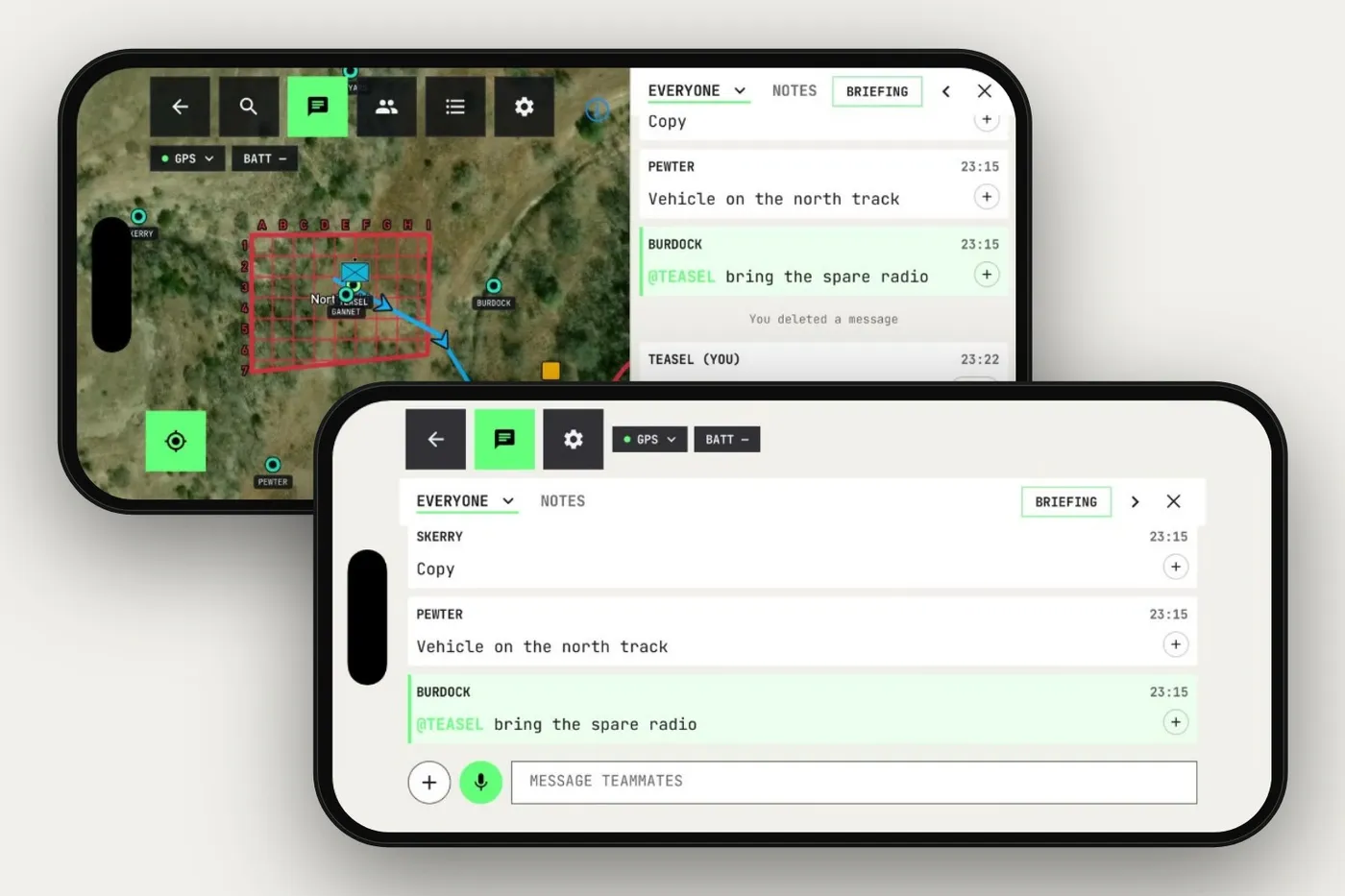
Tap the chat button on the map's toolbar (the speech bubble, third from the left). The chat docks under the map in portrait and on the right in landscape, so you keep seeing the map while you read. The button turns green with a dot when there's something new.
- The arrow in the chat header makes the chat full screen, and tapping it again brings it back.
- The X closes the chat.
- Tap a callsign in the chat to fly the map to that player.
The chat works in every session state: Standby, Ongoing, and after the training is Stopped.
Write a message
Type in the box at the bottom and tap the green arrow to send. Return adds a new line.
- @mentions: type @ and pick a player. A message that mentions you gets a green bar so you spot it.
- Reactions: tap the + at the end of someone's message to add a 👍, or press and hold the message and pick an emoji from the row at the top of the menu. Each emoji shows as a chip with a count under the message. Tap your own reaction again to take it back.
- Replies: swipe a message to the left, or press and hold it and tap Reply. Your reply shows a quote; tap the quote to jump to the original.
- Edit and delete: press and hold your own message for Edit message and Delete message.
Each chat keeps your unsent text, so you can switch chats or close the app without losing what you typed.
Photos and voice messages
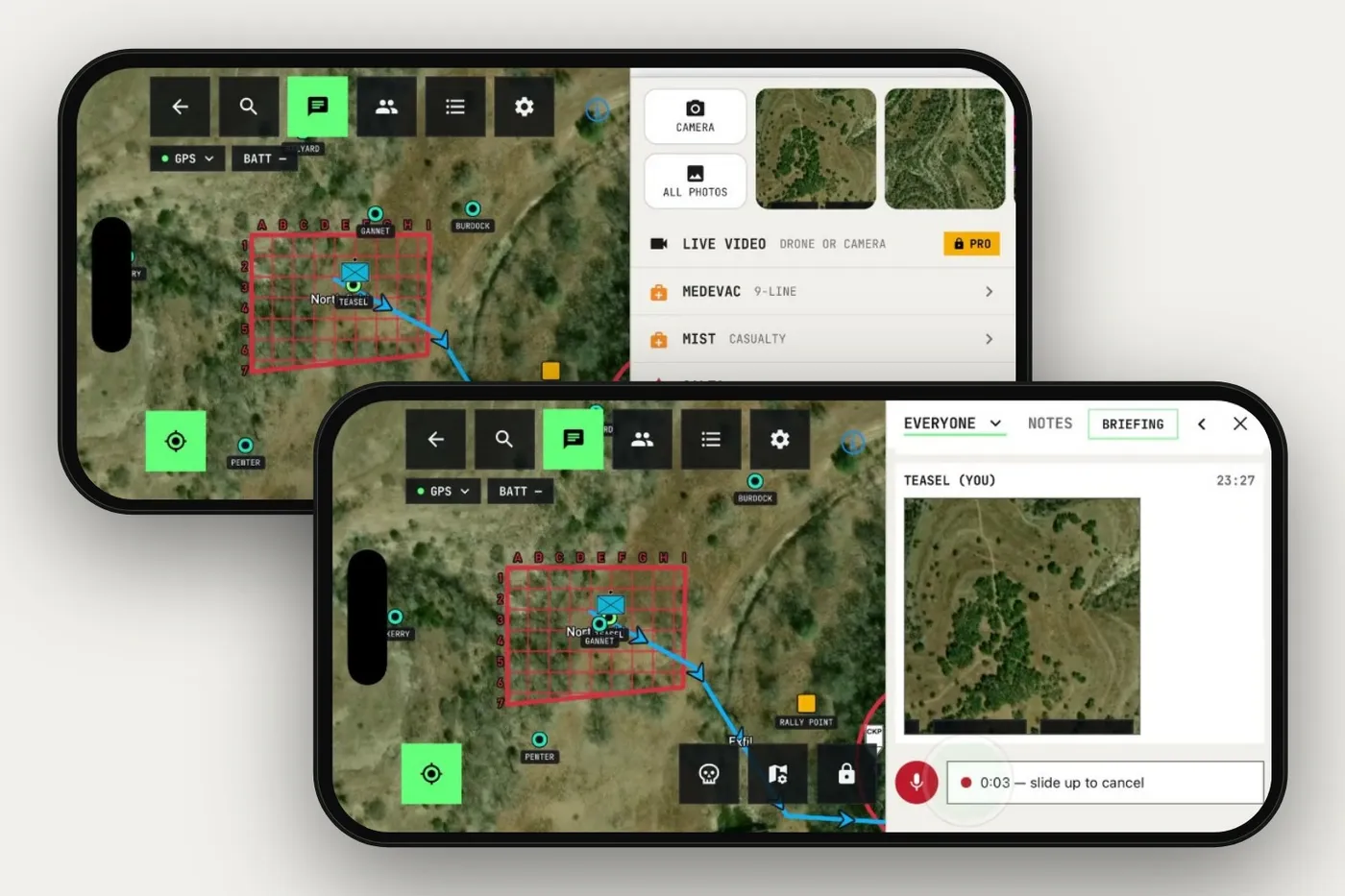
Tap the + next to the message box:
- Camera takes a photo, All Photos picks one, and on iPhone your recent photos are right there. You can send up to 10 at once, with a caption.
- MEDEVAC, MIST, SALTA and SITREP fill in a report on the spot under the map's crosshair. The [reports guide](https://tacsync.com/guides/salta-sitrep-medevac-reports-in-tacsync) covers them step by step.
For a voice message, use the microphone that shows while the box is empty:
- Hold it to record, and let go to send. Slide up to cancel.
- Tap it to record hands-free, then tap the green arrow to send.
A voice message can be up to 60 seconds long.
Private chats and group chats
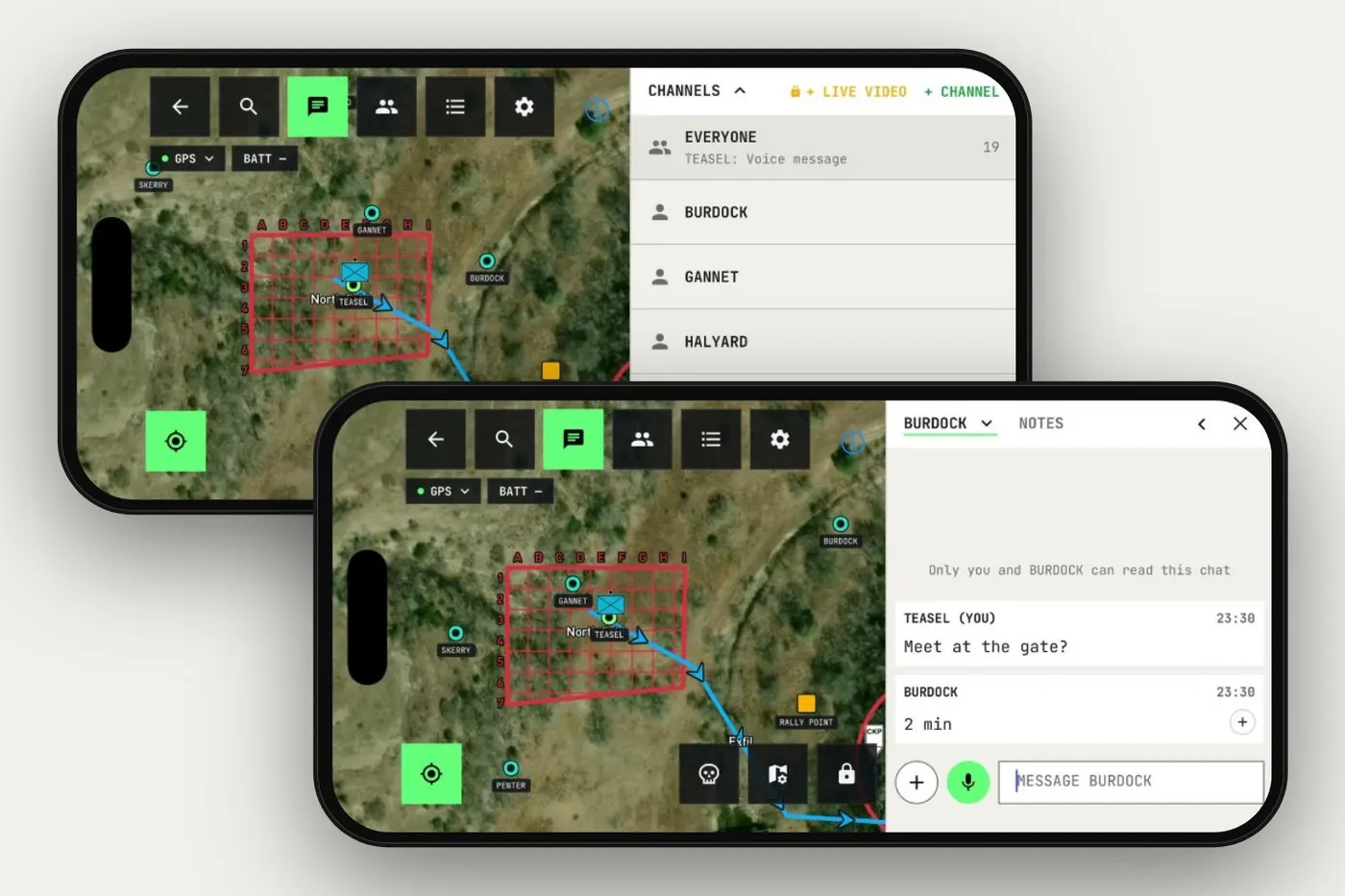
Tap the chat's name at the top (for example EVERYONE ▾) to open the list of chats. It shows Everyone, your private and group chats, and every other player in the session.
- Private chat: tap a player. Only the two of you can read it; admins can't.
- Group chat: tap + CHANNEL, give it a name, tick the players and tap Create group. Anyone in the group can add people; Leave group is in the group's info.
A red bubble next to the chat's name means there are unread messages in your other chats.
Admin tools: pins, briefing and admin-only channels
Admins (the session's creator, and anyone they made admin) have a few extra tools in the main chat:
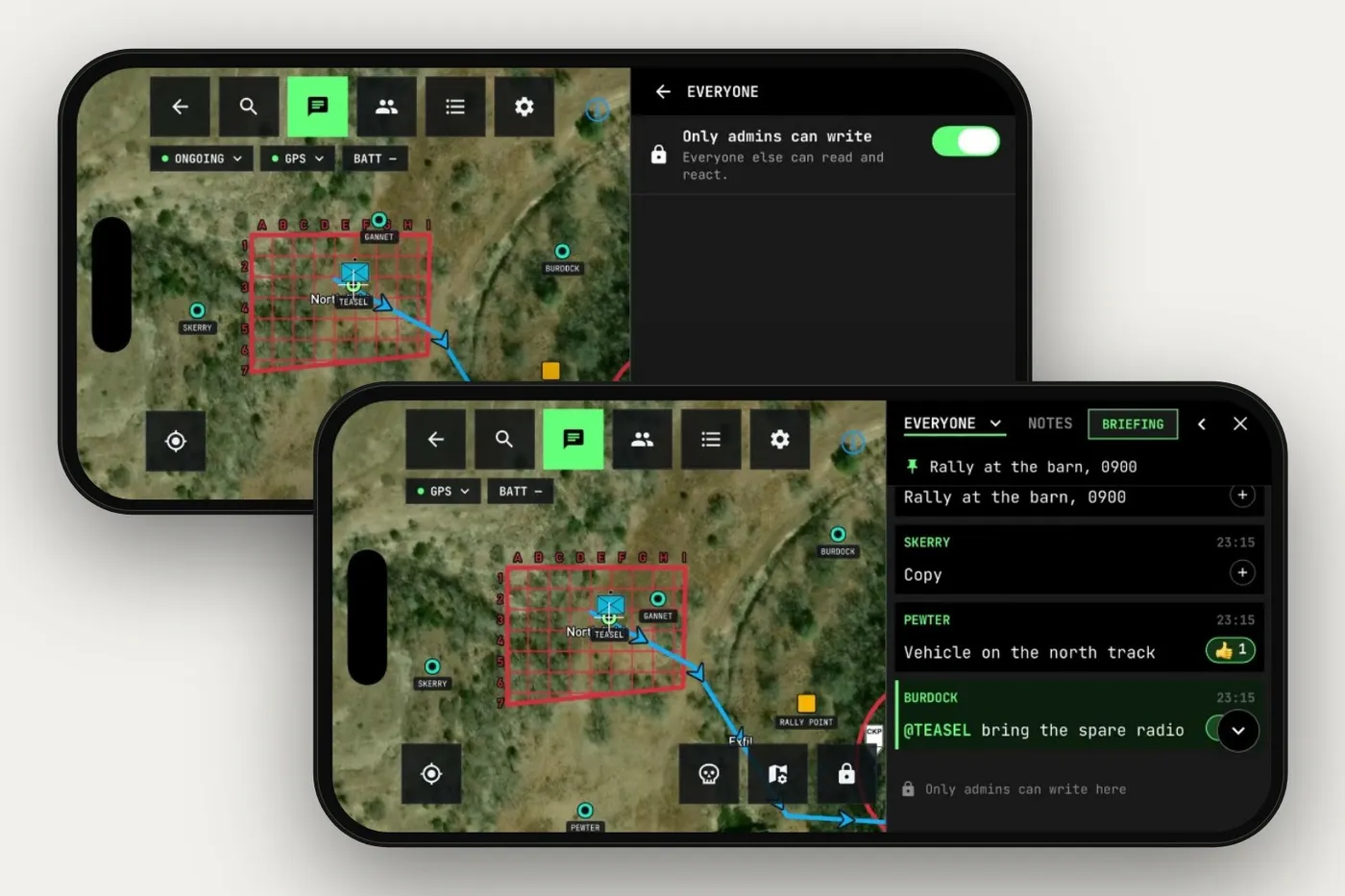
- Pin message: press and hold a message and tap Pin message. Pinned messages sit in a bar under the chat header for everyone.
- Briefing: write the mission briefing in Settings → Briefing. Players open it with the BRIEFING button in the chat header.
- Edit and delete any message in the main chat.
- Only admins can write: in the chat list, tap the cog next to Everyone and turn on Only admins can write. Everyone else can still read and react, and their message box shows "Only admins can write here". Private and group chats keep working as normal.
Admin-only is handy for big events: the main channel stays for orders and updates, and players use private or group chats to talk among themselves.
Messages from the map
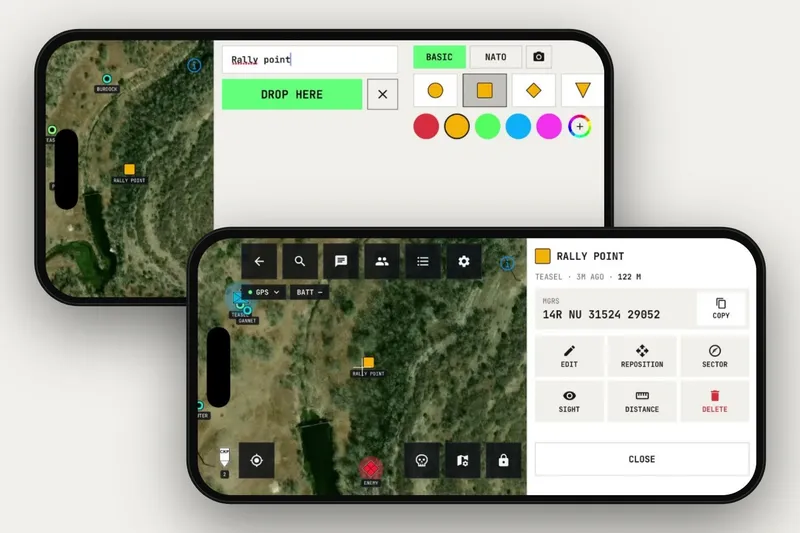
When someone drops a marker or draws a line or area, the chat gets a line like "New marker: Rally point". Tap VIEW to fly to it and open its card. Reports such as a MEDEVAC 9-line post as cards with Map, Copy and status buttons.
Notifications
Every new message in a chat you can read sends a notification, unless you're looking at that session's chat at the time. Tapping a notification opens the session with the chat on that message.
- Encrypted sessions: iPhone shows the message text in the notification. On Android it can say just "New message"; open the chat to read it.
- Too many notifications: silence the "Chat messages" category in your phone's notification settings for TacSync.
- Read chat aloud: in Settings → Voice alerts, TacSync can read messages out loud, for example only the ones that mention you. Handy with the phone in a pouch and headphones in.
Notes only you can see
The NOTES tab next to the chat's name is a private notepad for the session: frequencies, grid references, anything you want to keep. Only you can read your notes, and they work without signal.
No signal
Everything you send is saved on your phone first. Without signal, your message shows "Waiting for signal…" and goes out by itself when you're back in coverage, in the right order, even if you close the app in between. Tap it to see "Not sent yet", or to discard it.
If you have a mesh radio connected, a text message to the main chat can go over the radio and shows "Sent by radio". Teammates with a radio in range get it straight away; everyone else gets it once someone has signal.
Report or block
Press and hold someone's message and tap Report message to send it to our moderation team. To block a player, open their card on the map or in Members, tap ⋯ and Block. You then stop seeing each other's messages, positions and markers in every session.
Teams in TacSync Pro
In a session with teams, your main chat is your team's channel: you see your team's messages and the instructors' messages to everyone, and nobody from the other teams. Instructors can switch between teams and write to all of them at once.
Who can do what
| Everyone | Admins | |
|---|---|---|
| Messages, photos, voice, private and group chats, notes | Yes | Yes |
| Edit and delete your own messages | Yes | Yes |
| Edit and delete anyone's messages in the main chat | Yes | |
| Pin messages, write the briefing | Yes | |
| Make a channel admin-only | Yes | |
| Report a message, block a player | Yes | Yes |
Quick checklist
- The chat button on the map opens the session chat.
- + for photos and reports, the microphone for voice messages.
- Tap the chat's name for private and group chats.
- Admins: pin messages, write the briefing, make Everyone admin-only.
- NOTES for things only you need.
Next guide: map settings and tools.
TacSync
Put your whole team on one live map.
Positions, markers, routes and chat in a private session. Join with a QR code, no server to set up.