Join a training in TacSync and share your position

Written by TacSync Team
Product news from the team that builds TacSync.

On this page
Someone in your group has set up a TacSync session for the next training, and now it's your turn. This guide covers everything a player needs: joining with the QR code or the invite link, allowing location on your phone, sharing your position, finding your teammates on the map, and what happens when the admin stops the training.
What you need
- TacSync on your phone. It's free on the App Store and Google Play.
- The QR code or the invite link from someone who is already in the session.
- An account, or not. You can Continue as guest, or Create a free account with your email and a code (no password). A guest can be in one session at a time. With a free account you can be in more, and your sessions stay yours if you change phones.
- Nothing to pay. Players who join a session never pay.
Join with the QR code
If you're standing next to the person who invites you:
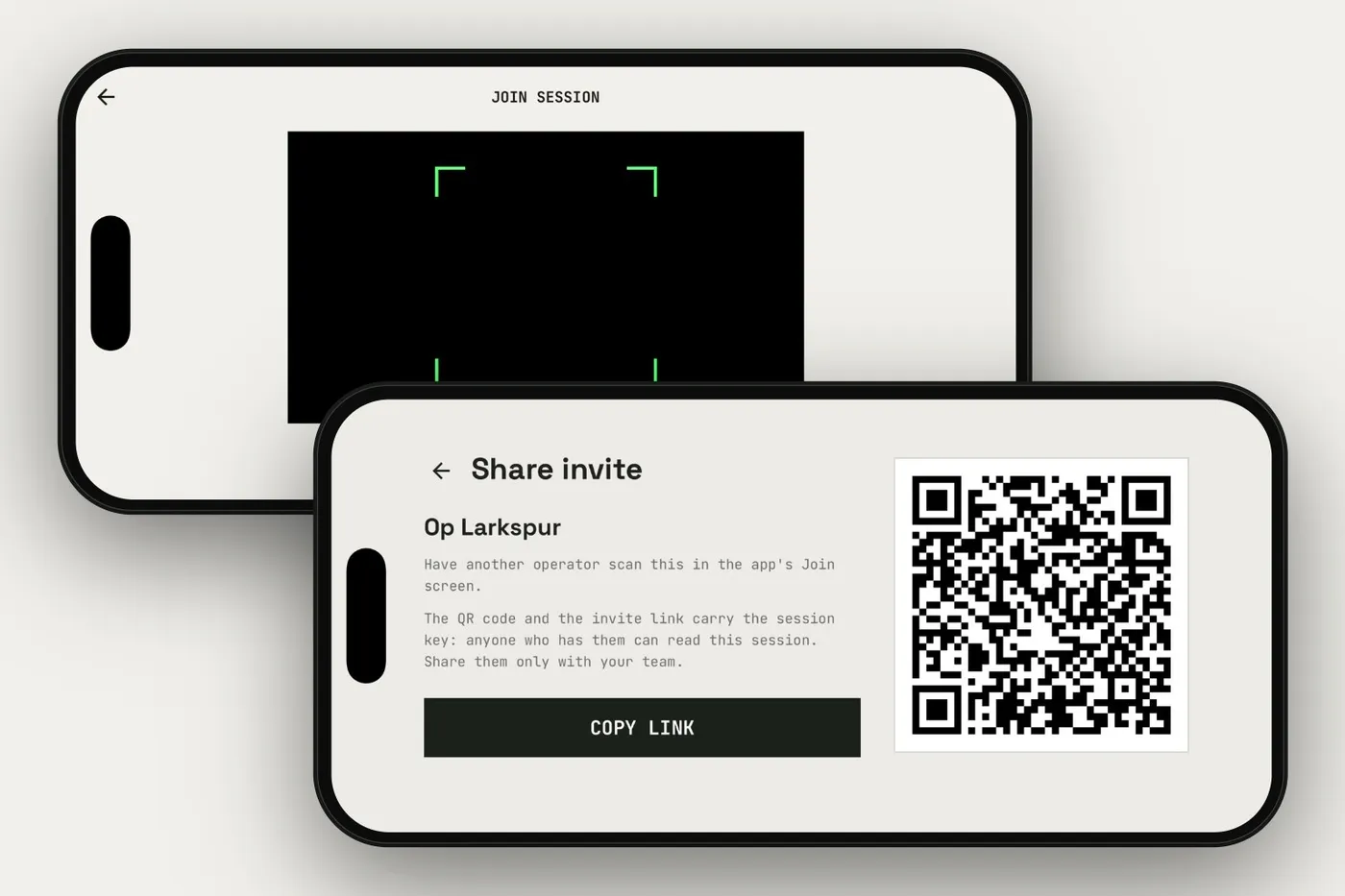
- Open TacSync and tap Join session on the home screen.
- The first time, TacSync explains why it needs the camera: tap Continue and allow it.
- Point the camera at the QR code on their screen. The app says Joining… and opens the session map.
The person inviting you finds the QR code under Members → Invite or Settings → Invite. Anyone who is already in the session can show it, not only the admin.
Join with an invite link
If your group shares the link in a group chat:
- TacSync is installed: tap the link. TacSync opens and joins the session.
- TacSync isn't installed yet: the link opens an invite page with the session's name and the App Store and Google Play buttons. Install the app, go back to the same page and tap Open in TacSync.
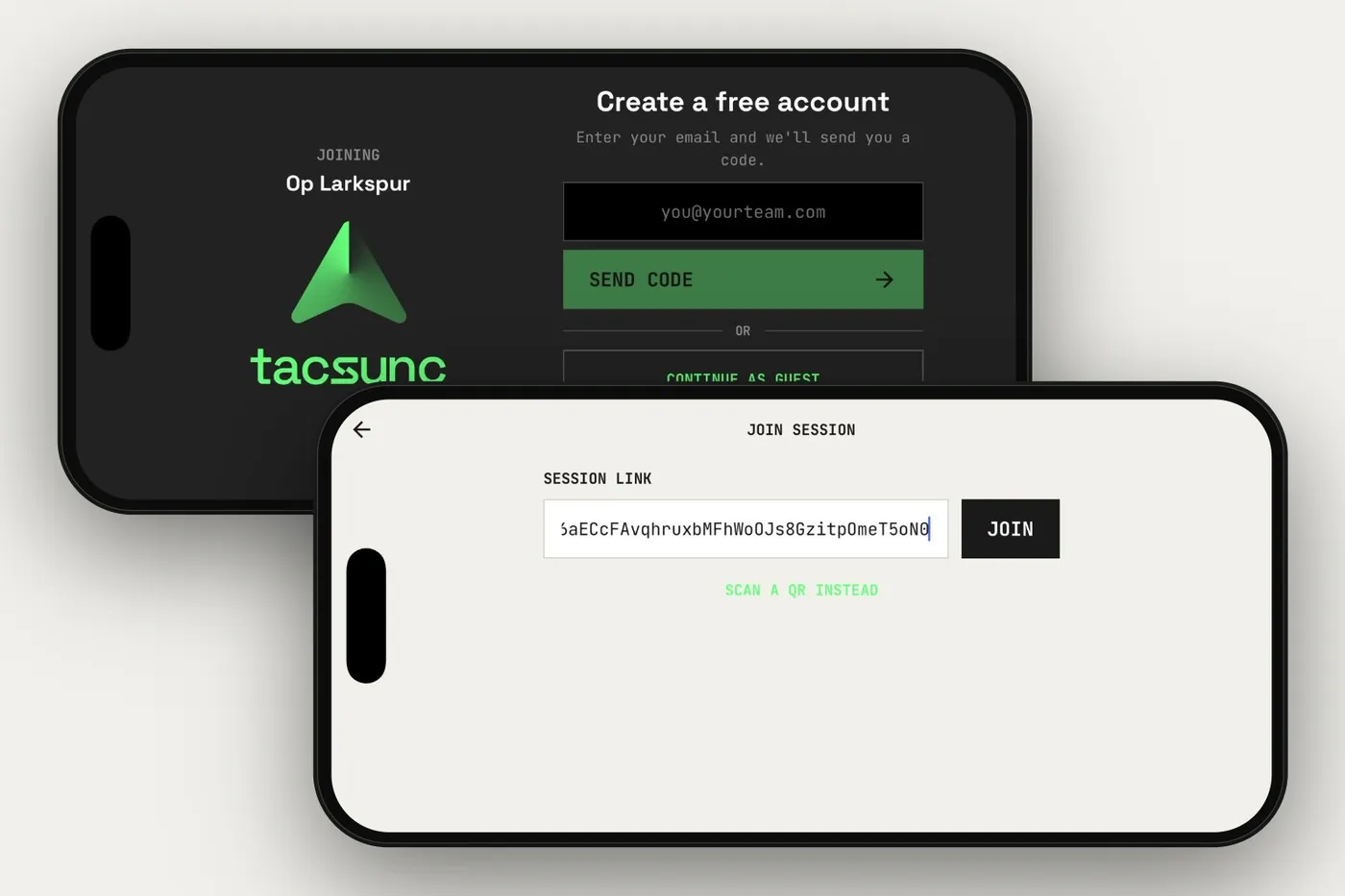
- Tapping the link doesn't open the app: copy the whole link (the invite page has a Copy invite link button), open TacSync, tap Join session, then Paste session link, paste it and tap Join.
On a brand-new install, TacSync first shows its welcome screen with Joining and the session's name. Pick Create a free account or Continue as guest, and the app carries on into the session.
If the session has teams (a TacSync Pro feature), the QR code or link you were given puts you straight on your team.
### Every session is encrypted
Every TacSync session is encrypted. The key travels inside the QR code and the invite link, so those are the only ways in.
Treat the QR code and the link like a key: anyone who has them can read the session.
If you're already in another session as a guest
A guest can be in one session at a time, and a stopped session still counts. If you try to join a second one, TacSync shows Session limit reached and offers to create a free account right there. Enter your email and the code you receive, and the join carries on by itself.
If you'd rather stay a guest, leave the old session first: open it, then Settings → Leave session.
Pick your callsign
Your callsign is the name next to your dot on everyone's map. TacSync asks for it on the home screen (Choose a callsign). To change it later, tap your callsign at the top of the home screen, then Edit.
Allow location
TacSync asks for location the first time your position is about to be shared, which is when the session is Ongoing. During Standby nothing is shared, so nothing is asked yet.
iPhone:
- Allow location While Using the App.
- When iOS asks again, choose Change to Always Allow. Without "Always", your teammates stop seeing you as soon as your phone locks.
- Keep Precise Location on. Without it your position is only known to about 1.5 km, and teammates can't see you at all.
Android:
- TacSync first explains what it shares (Share location with your session). Tap Continue.
- Allow location, then pick Allow all the time in the settings screen Android opens.
- Android then asks whether TacSync may run in the background. Allow it, so the phone doesn't freeze tracking with the screen off.
If something is still missing, a red banner on the home screen and in Settings names it, for example Background location is off or Battery optimization is on. Tap the banner to fix it.
### When the session requires location
An admin can turn on Require location permission for a session. If your phone isn't set up, the session opens on a Set up your app screen instead of the map. Tap Allow always access (or Allow background activity on a battery-restricted Android phone). The screen closes by itself once everything is in place. Sharing itself stays your choice.
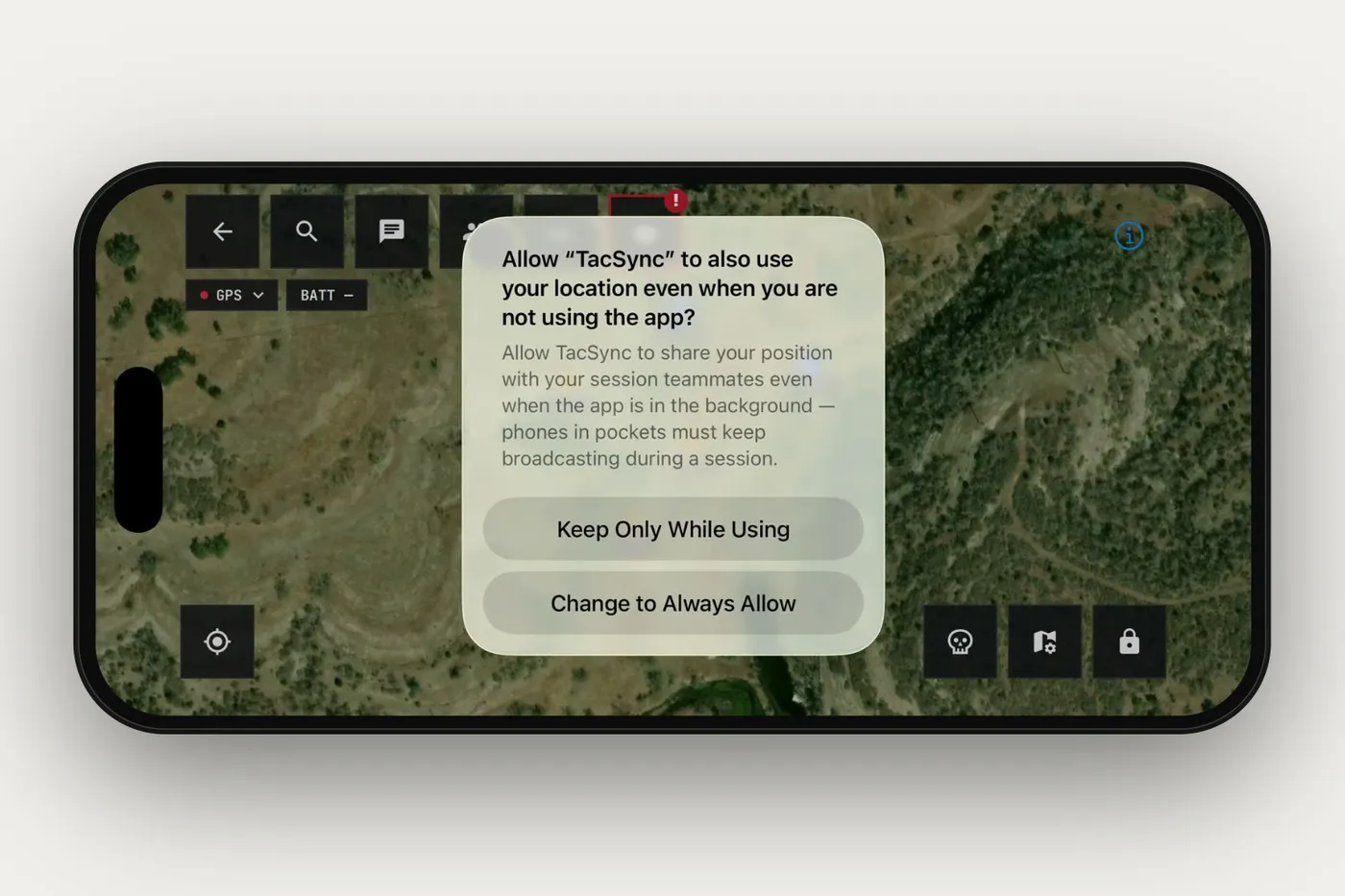
Share your position
When the session is Ongoing and your sharing is on, TacSync sends your position about every 8 seconds, also with the phone locked in your pocket. On Android you see a notification, TacSync — sharing position, while it runs.
The GPS pill at the top of the map shows how it's going:
| Pill | What it means |
|---|---|
| GPS with a green dot | Your position is fresh and being shared. |
| GPS with a red dot | Sharing is on, but the phone hasn't had a GPS fix for 15 seconds or more. |
| Red GPS off | Your sharing is off, or the session is on Standby. |
Tap the pill to turn sharing off or on: Stop sharing location or Share my location. The same switch is in Settings → My location → Share GPS. It's one switch for your phone, so if you turn it off, it stays off for your next session too. When an admin starts a session that was on Standby, TacSync turns sharing back on for players who had it off, on phones where the app is running.
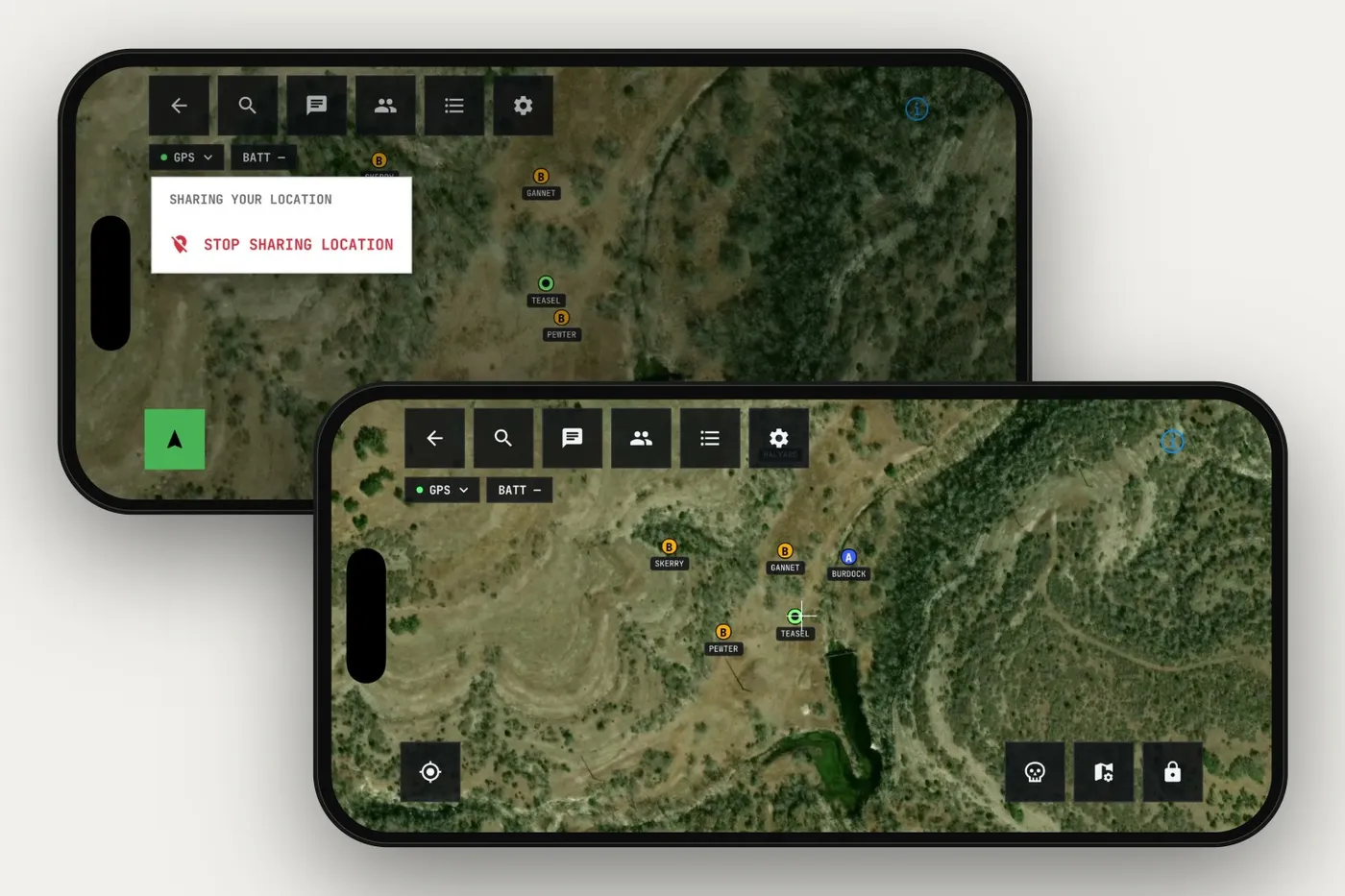
See your team
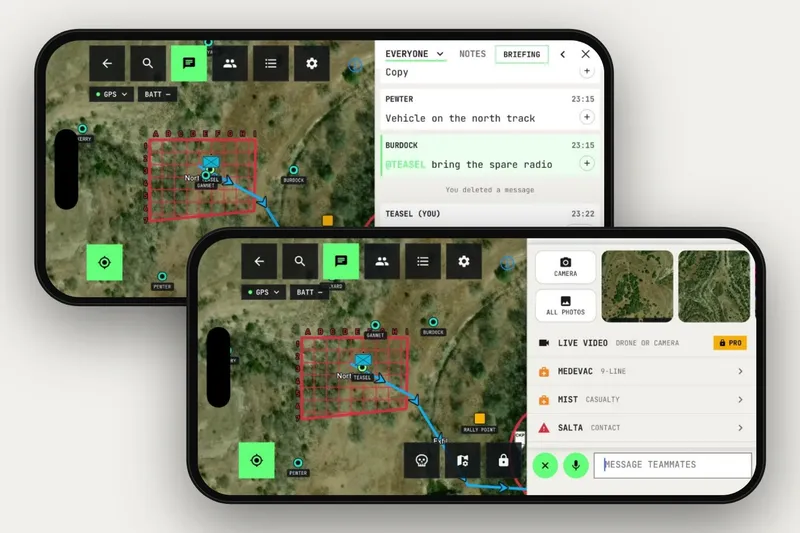
Each teammate who shares appears as a dot with their callsign, in their squad's colour if the admin put them in one. A small white pointer shows which way their phone is facing.
- A dot fades when its position is more than 45 seconds old or not accurate.
- It disappears after 90 seconds without an update.
Open Members for the list: each row shows the player's battery, whether their GPS is on, Online or Offline, and when they were last seen.
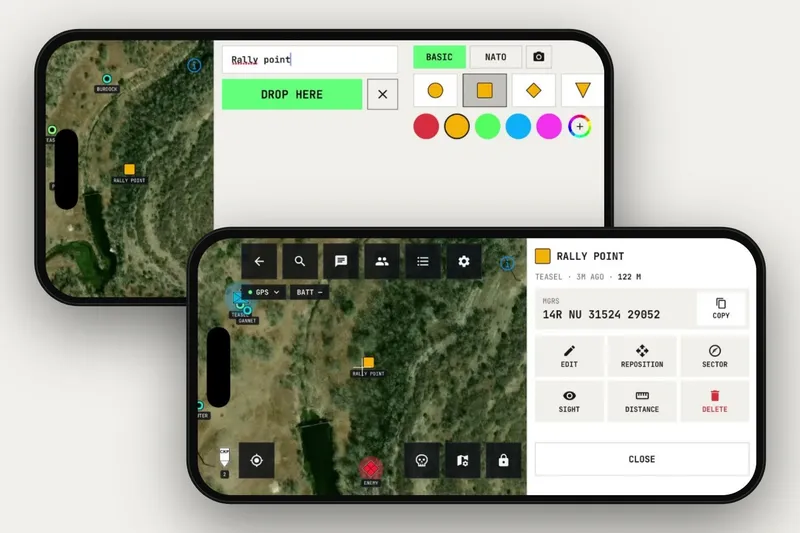
Tap a dot or a row to open the player's card: how far away they are, their grid reference, and tools like Follow, which keeps them in the centre of your map until you tap the Following pill to stop.
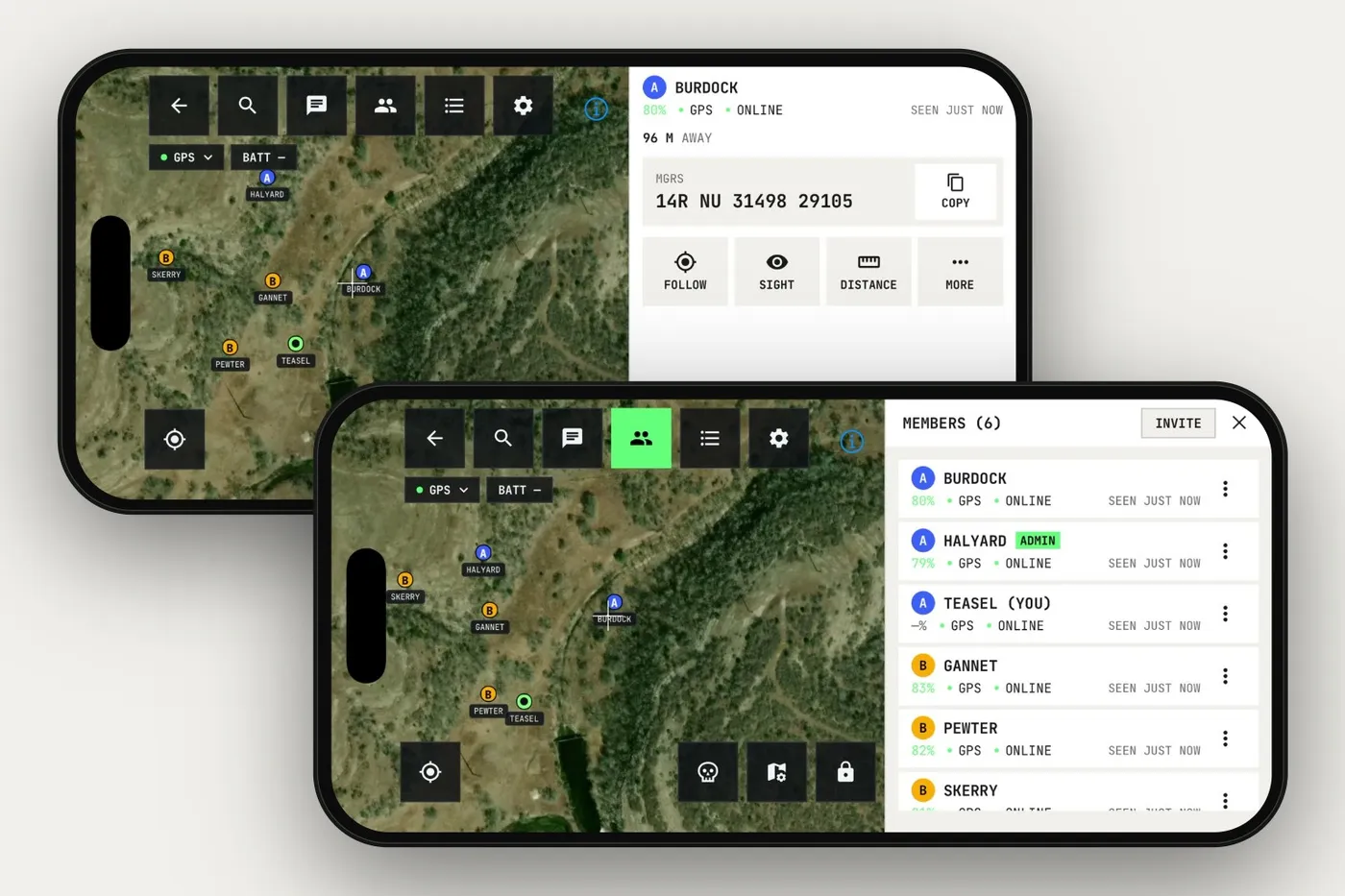
When the training stops
When the admin sets the session to Stopped, sharing stops on every phone, and the Android notification goes away. The map, the markers and the chat stay, and the session stays on your home screen marked Stopped. If the admin switches it back to Ongoing later, sharing starts again when you open the session.
Done with the session for good? Open it and tap Settings → Leave session. Your phone forgets the session's key, so you need the QR code or the link again to rejoin.
Quick checklist
- Get the QR code or the invite link from a teammate.
- Join session and scan, or tap the link.
- Pick your callsign on the home screen.
- Allow location Always (iPhone) or all the time (Android), with Precise Location on.
- Check the GPS pill: green dot means you're on the map.
- Tap the pill to stop or start sharing.
Next guide: markers, lines and areas.
TacSync
Put your whole team on one live map.
Positions, markers, routes and chat in a private session. Join with a QR code, no server to set up.