Set up your first training in TacSync with a few friends

Written by TacSync Team
Product news from the team that builds TacSync.

On this page
You don't need an event organiser to use TacSync. If you train with a few friends or a small squad, you can set up your own session in a couple of minutes: create it, invite everyone with a QR code or a link, and switch it on when you step into the field. This guide goes through the whole thing, from the first tap to looking back at the map afterwards.
What you need
- The app on every phone. TacSync is free on the App Store and Google Play. Everyone who joins needs it.
- An account, or not. The first screen offers Create a free account (your email and a code, no password) or Continue as guest. A guest can be in one session at a time. With a free account you can be in more than one, and your sessions stay yours if you reinstall the app or change phones.
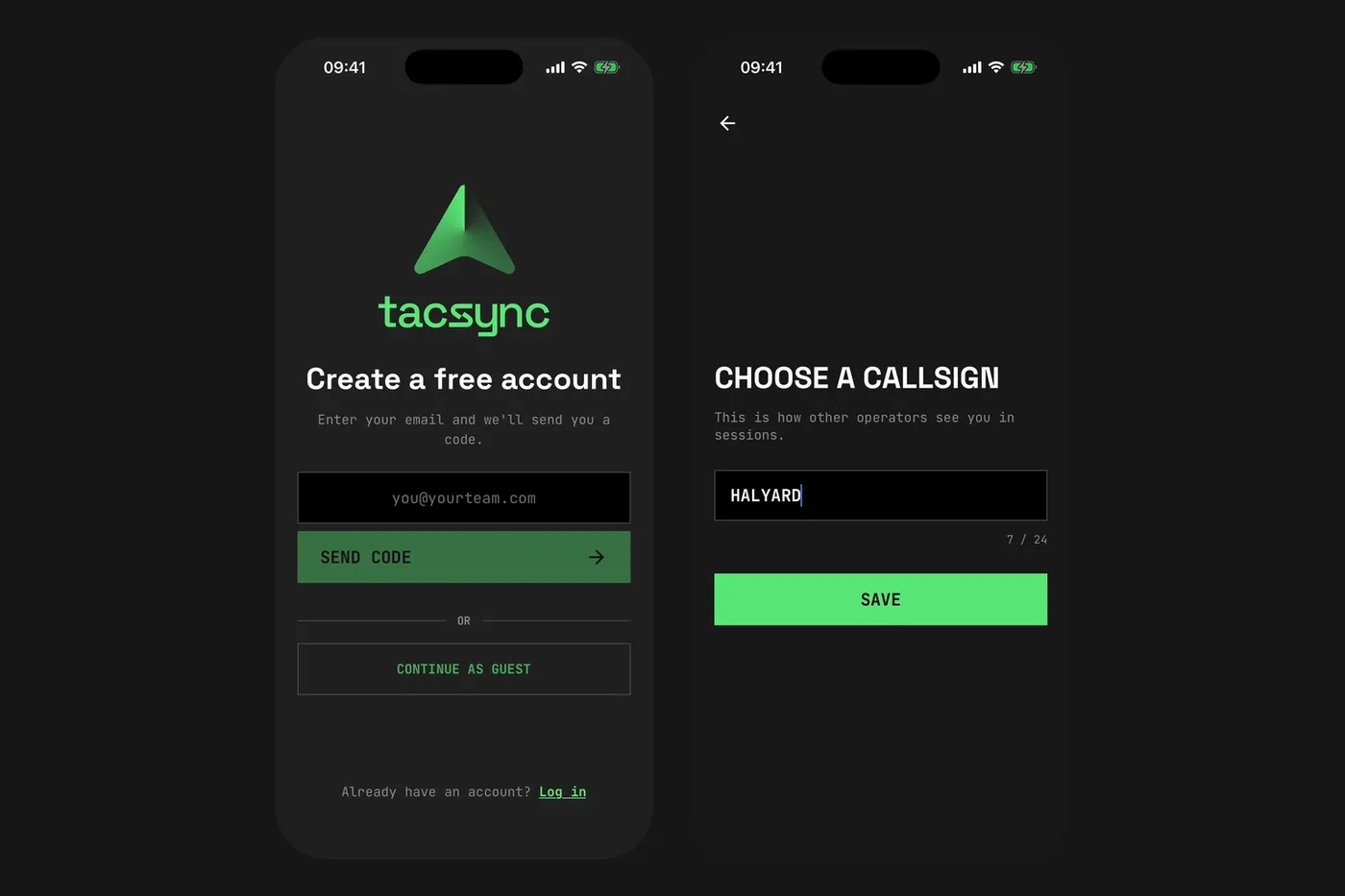
- A callsign. TacSync asks for one when you start. It's the name your friends see next to your dot on the map.
- Nothing to pay. Players who join a session never pay. From 1 December 2026, a session of up to 12 people, you included, keeps every free feature with no time limit.
Create the session
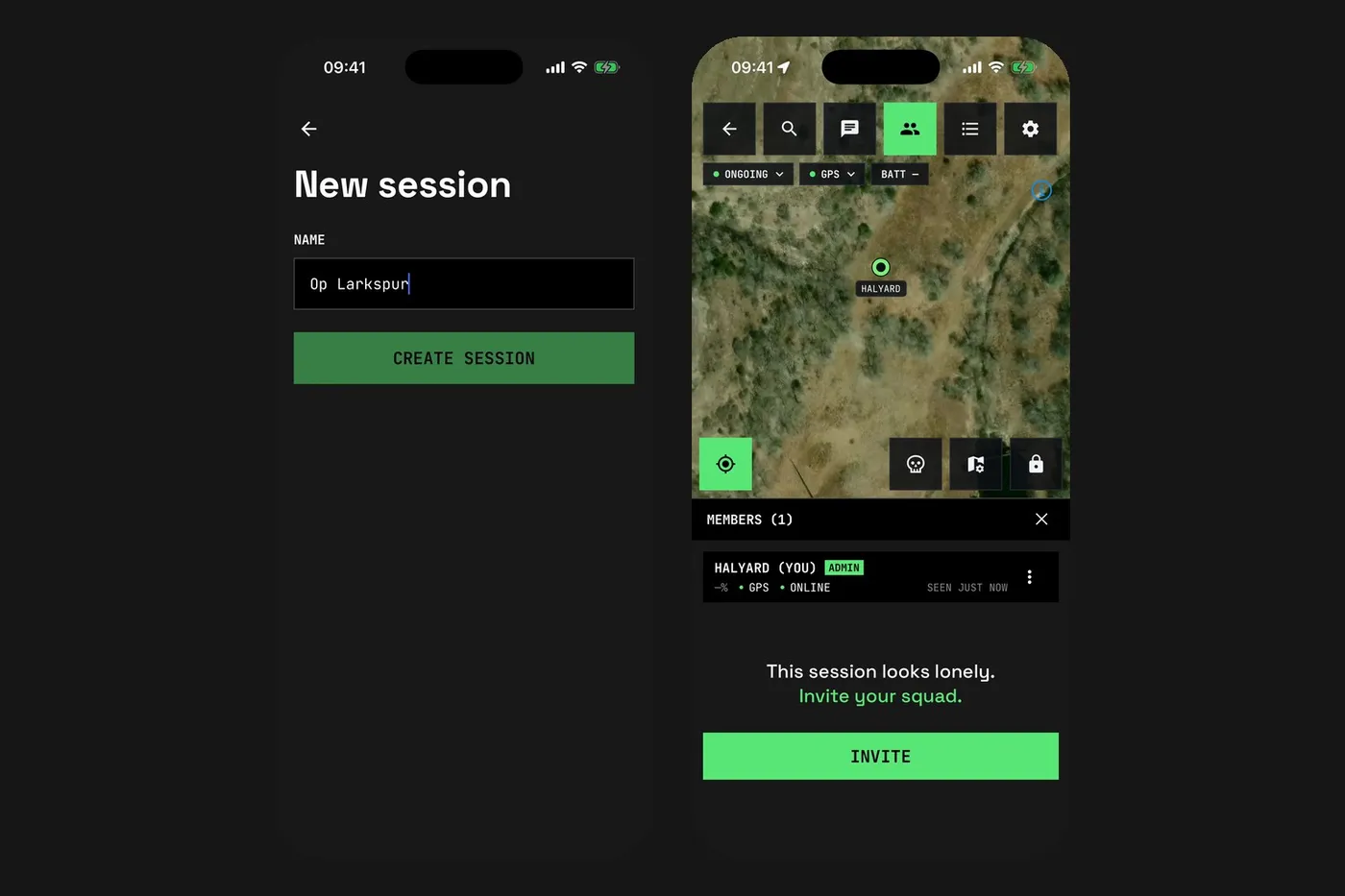
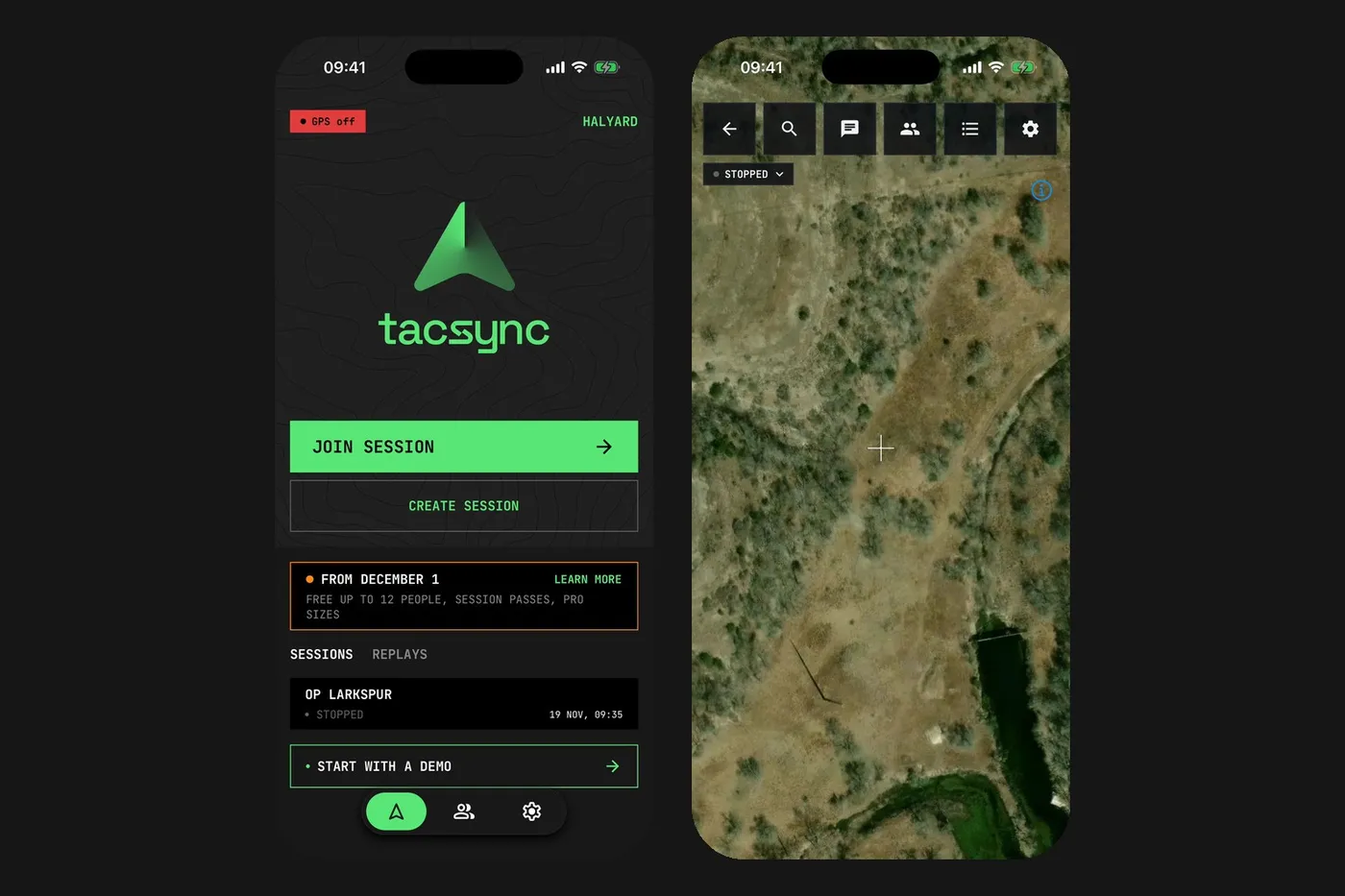
- On the home screen, tap Create session.
- Type a name, for example "Op Larkspur".
- Tap Create session.
The map opens straight away with the members list, which shows you with an Admin tag: you created the session, so you're its admin. Until anyone else joins, the list says "This session looks lonely. Invite your squad."
Every new session is encrypted. The key is made on your phone and travels inside the invite QR code and link, which is why friends join with those rather than with a typed code. Chat, photos and voice messages are encrypted on the phones, and so are positions and marker names as soon as everyone in the session runs an up-to-date TacSync.
Find your way around the map
The buttons along the top of the map, from left to right:
- Back to the home screen.
- Search for a place.
- Chat for the session chat.
- Members: everyone in the session, and the Invite button.
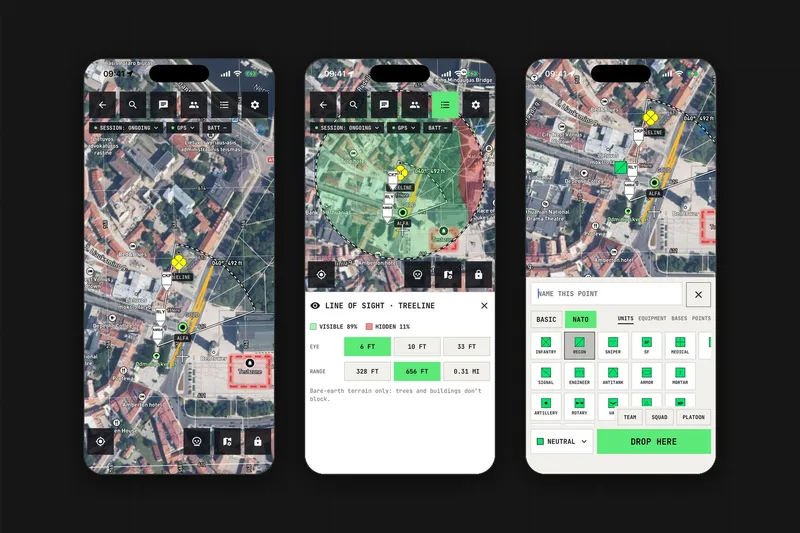
- Markers: a list of every marker, line and area.
- Settings (the gear): the session settings, with Invite, Rename, Stop session and more.
Under them sit the session status, the GPS pill that shows whether your own position is being shared, and your battery.
Standby, Ongoing and Stopped
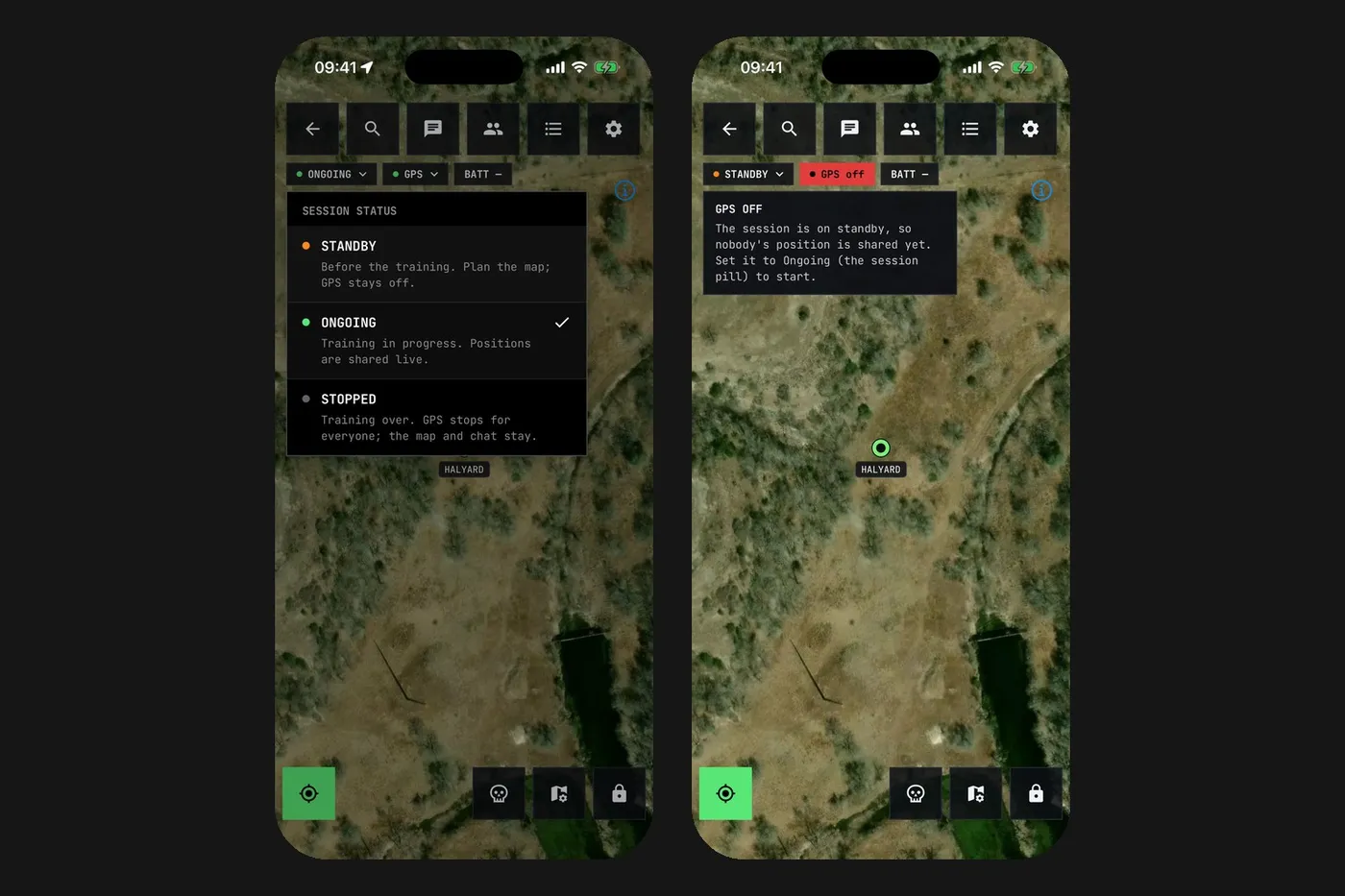
A session is always in one of three states. A new session starts as Ongoing. To change it, tap the status at the top left of the map. Only admins can change it; everyone else can see it.
| State | What the app says |
|---|---|
| Standby | Before the training. Plan the map; GPS stays off. |
| Ongoing | Training in progress. Positions are shared live. |
| Stopped | Training over. GPS stops for everyone; the map and chat stay. |
Standby is handy when you set things up a day or an hour early. Friends can join, look at the map and read the chat, and nobody's position goes out until you switch to Ongoing. Tap the red GPS off pill and the app tells everyone why: the session is on standby.
Invite your friends
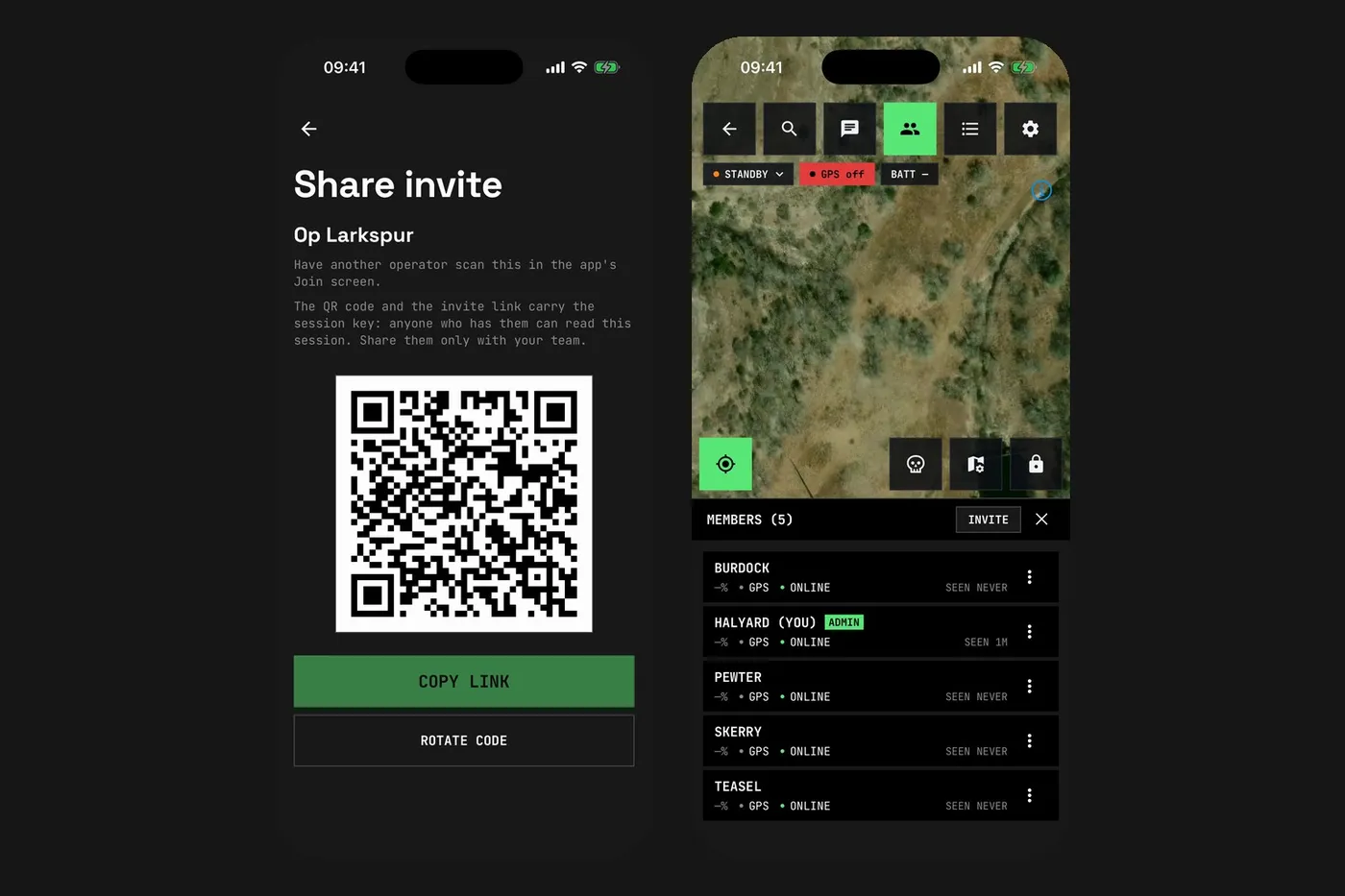
Open Members and tap Invite, or open Settings and tap Invite. The Share invite screen shows the session's QR code.
- Friends next to you open TacSync, tap Join session and scan the QR code on your screen.
- Friends somewhere else: tap Copy link and paste the link into your group chat. Tapping it opens the session in TacSync. If someone doesn't have the app yet, the link opens an invite page with the App Store and Google Play buttons. After installing, they come back to that page and tap Open in TacSync.
- Rotate code makes a new QR code and link. The old one keeps working until it expires.
The QR code and the link carry the session key, so anyone who has them can read the session. Share them only with your team.
Anyone in the session can open the invite while it's on Standby or Ongoing, so a friend can bring the next person along.
Watch your squad arrive
As friends join, they appear in Members. Each row shows their callsign, their battery, whether their GPS is on, and Online when they're connected right now. On Standby nobody's position is shared yet, so their rows say "Seen never" until you start.
Tap a player, on the map or in the list, to open their card: how far away they are, their grid reference, Follow, Distance, Sight and more.
Split into squads (optional)
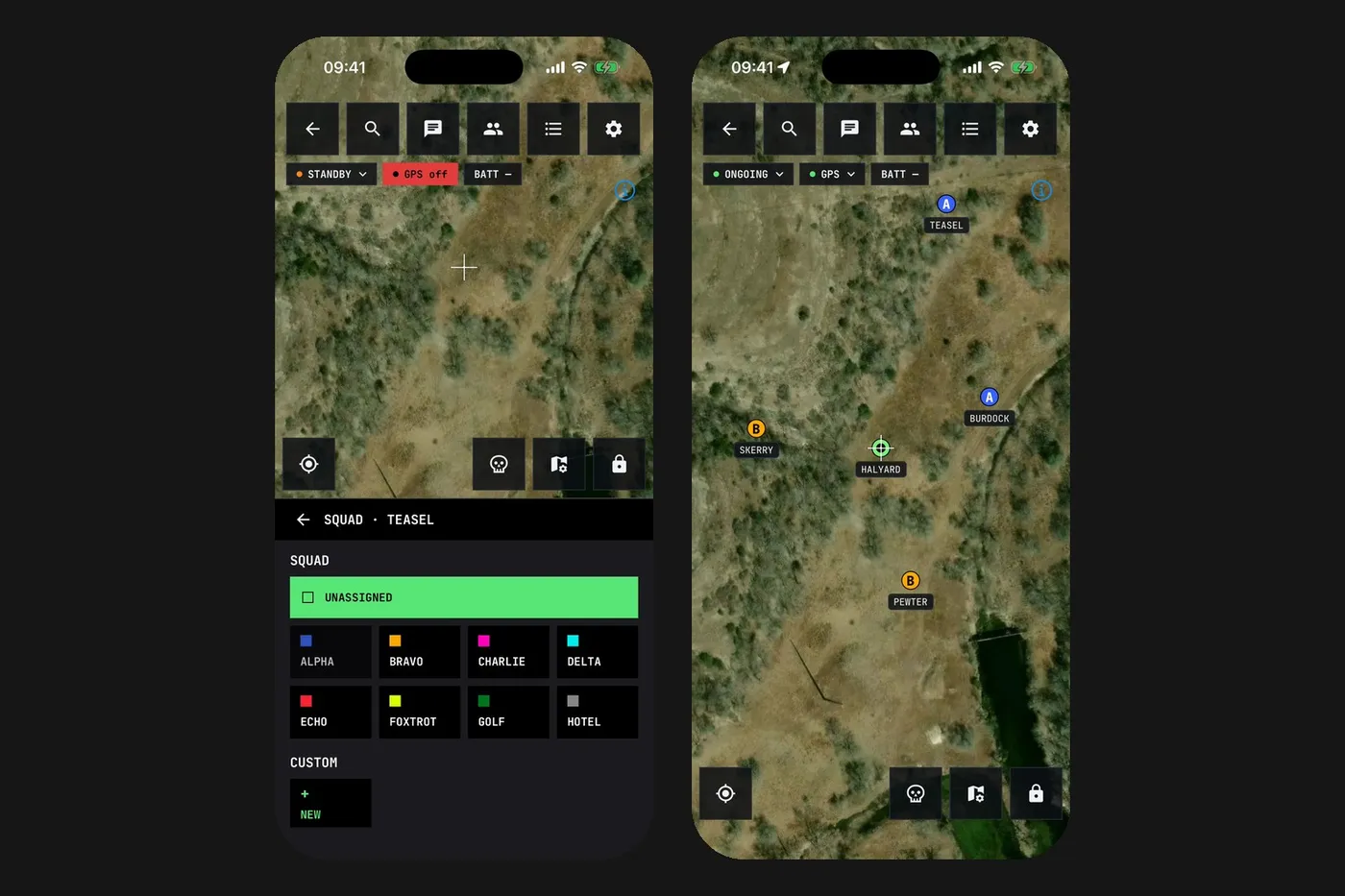
Squads give players a colour and a letter on the map, so you can tell two fire teams apart at a glance. As an admin:
- Tap a player to open their card.
- Tap Squad.
- Pick one of the eight ready-made squads, Alpha to Hotel, or tap New under Custom to make your own with a name and a colour.
You can also open the menu next to a name in Members and choose Assign to squad…. The members list then groups players by squad.
If you want opposing teams that each see only their own map and chat, that's what Teams in TacSync Pro are for. For a group of friends on the same side, squads are usually all you need.
Who can do what
The person who creates the session is its first admin, and admins can make other players admins too.
| Everyone | Admins | |
|---|---|---|
| Share their position and chat | Yes | Yes |
| Drop markers and draw lines and areas | Yes | Yes |
| Edit or delete a marker | Their own | Anyone's |
| Invite while the session runs | Yes | Yes |
| Change Standby, Ongoing, Stopped | Yes | |
| Rename the session | Yes | |
| Put players in squads | Yes | |
| Make or remove admins, kick players | Yes | |
| Delete the session | Yes |
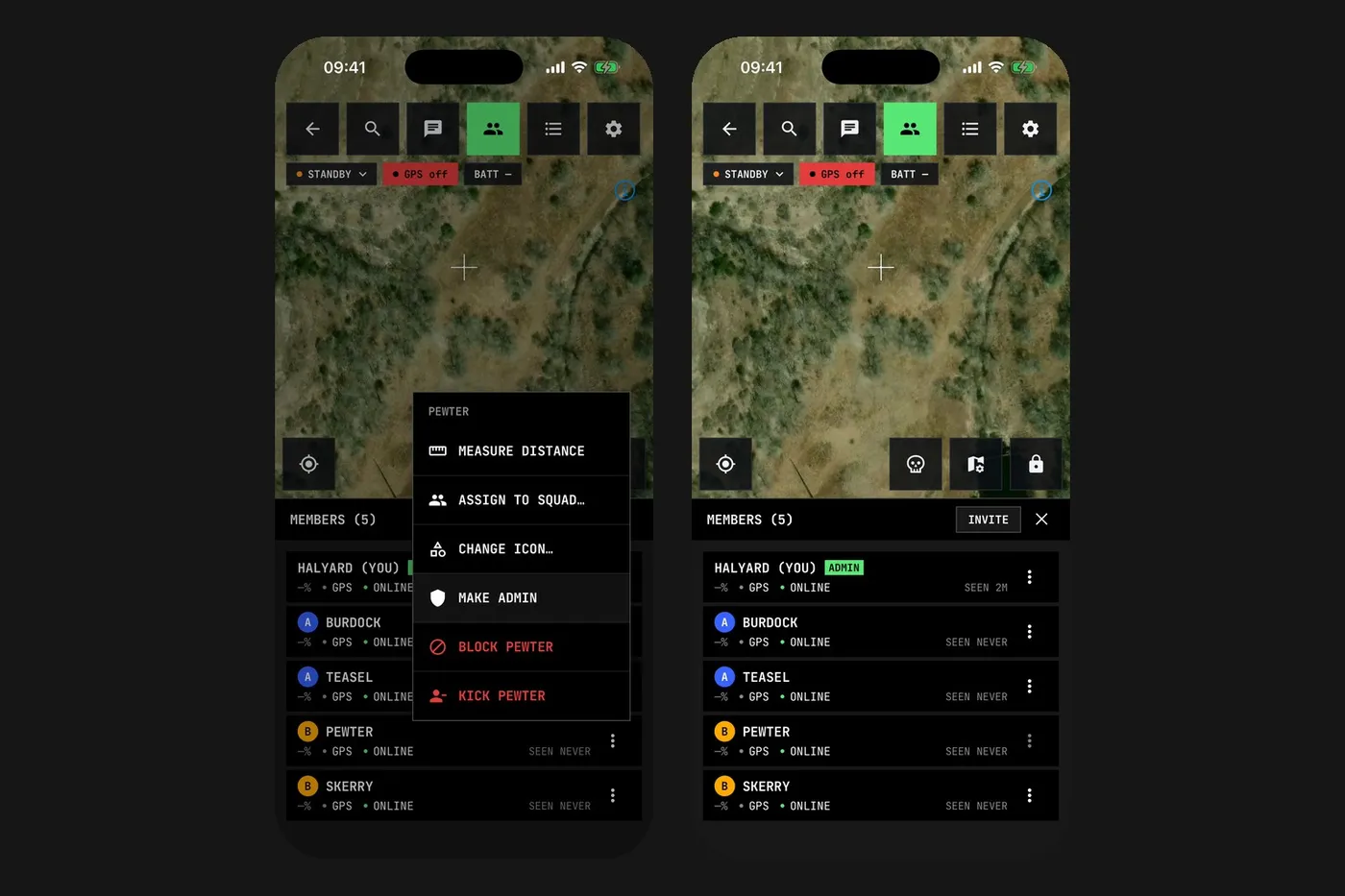
To make someone an admin, open the menu next to their name in Members and tap Make admin. The same menu has Kick, which removes a player from the session (they can come back only with a new invite), and Block. Anyone can block another player: you then stop seeing each other's messages, positions and markers in every session.
Start the training
When everyone is at the field, tap the status and choose Ongoing. Every player who shares their GPS appears on the map in their squad's colour, and you see them move. Each player can still turn their own sharing on or off from the GPS pill.
The chat works for the whole session: a message in Everyone reaches every player in it.
Stop the training
Tap the status and choose Stopped, or open Settings and tap Stop session. GPS sharing stops for everyone. The map, the markers and the chat stay, and you can switch the session back to Ongoing later, for example for a second day.
Look back afterwards
A stopped session stays on everyone's home screen under Sessions, marked Stopped. Open it to go back over the training: every marker, line and area is still where you left it, and the whole chat is there.
- Train again. Set it back to Ongoing or Standby, and the same people and squads are ready.
- Leave. A player who doesn't want it any more taps Leave session in Settings.
- Delete. An admin can delete the session for good from Settings. The chat, markers and photos go with it, and it can't be undone.
If you want to replay how the training moved, with everyone's tracks, that's the after action review in TacSync Pro. It shows under Replays on the home screen.
Quick checklist
- Create session and give it a name.
- Put it on Standby while you plan.
- Invite: the QR code in person, Copy link for the group chat.
- Put players in squads if you want colours.
- Ongoing when you step into the field.
- Stopped when you're done. The map and chat stay.
Next guide: how your friends join a training and share their position.
TacSync
Put your whole team on one live map.
Positions, markers, routes and chat in a private session. Join with a QR code, no server to set up.